Toybox → Paint Shop → Wraps

How to add custom wraps to Tesla Paint Shop

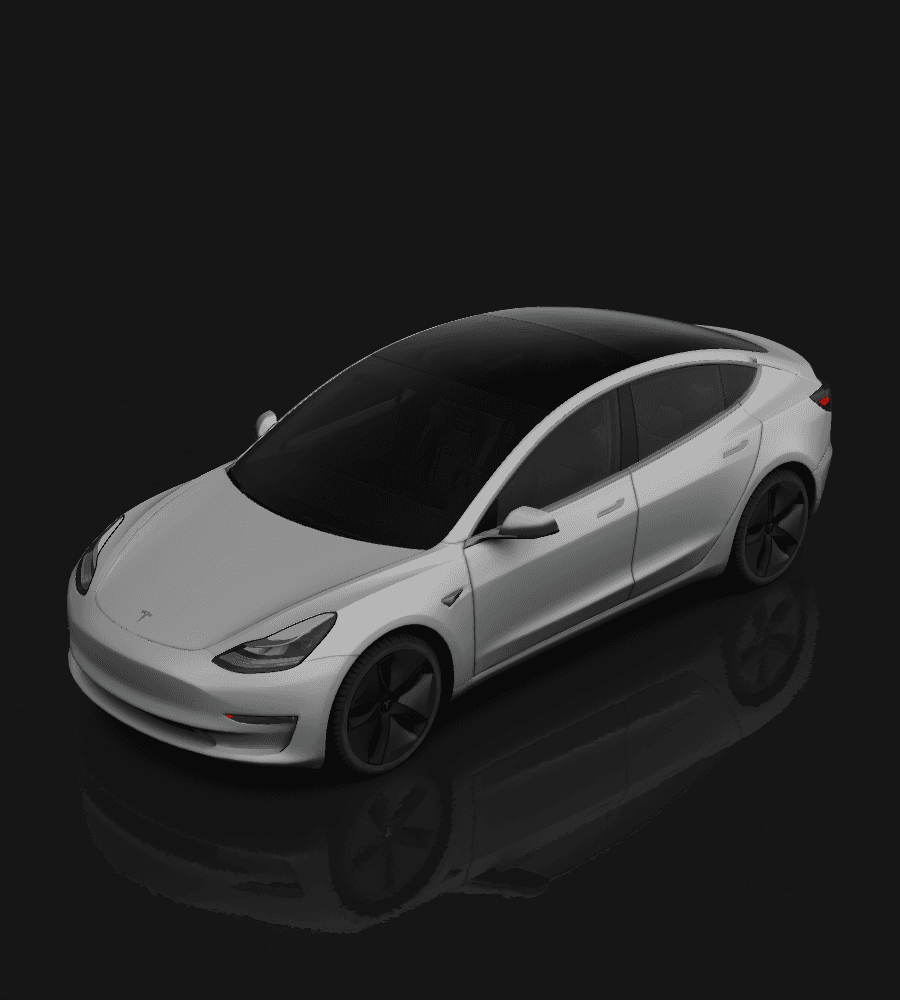
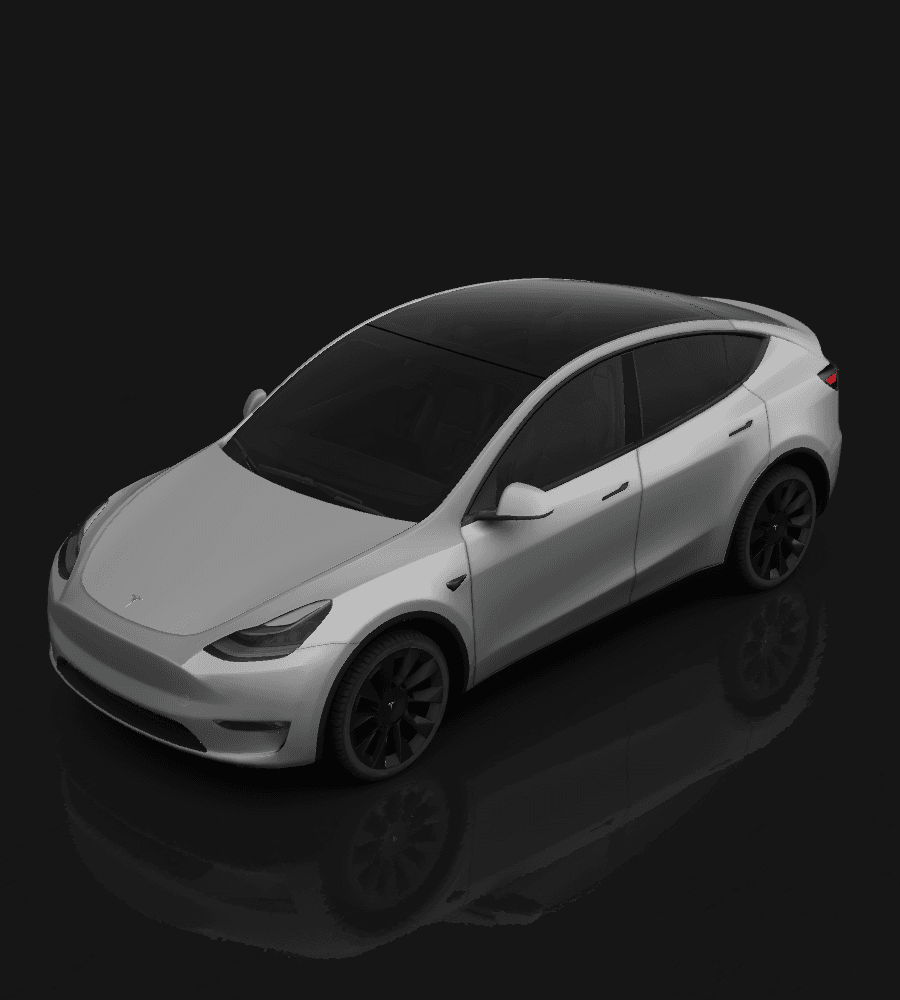
Paint Shop lets you change how your Tesla looks on its own touchscreen. You can load your own designs onto it in about ten minutes — by USB drive, or straight from the Tesla mobile app. Here is the exact process, the file rules Tesla enforces, and what to check when a wrap refuses to appear.

The short version

  1. 1

    Download a wrap for your model

    Pick a design made for your exact vehicle. Each Tesla model has its own template layout, so a Model 3 wrap will not line up on a Cybertruck.

  2. 2

    Copy it into a folder named Wraps

    Create a folder called Wraps at the top level of a USB drive formatted as exFAT, FAT32, MS-DOS FAT, ext3 or ext4, then place your PNG files inside it.

  3. 3

    Apply it from Toybox

    Plug the drive into a USB port inside the car, then open Toybox, choose Paint Shop, and select your design from the Wraps tab.

Paint Shop is a digital wrap — it changes your car on screen, not the physical paintwork. Nothing is applied to the vehicle and nothing is permanent.

What Tesla requires of the file

Paint Shop silently skips any file that breaks these rules — there is no error message on the screen, the wrap simply never appears in the list.

RequirementValueWhy it matters
File formatPNG onlyJPG, WEBP and HEIC are ignored
File sizeMax 1 MB per wrapThe most common reason a wrap never appears
Resolution512 × 512 to 1024 × 1024Match the template size for best results
FilenameMax 30 charactersLetters, numbers, spaces, underscores and dashes only
How many10 via app + 10 via USBThe two sources are counted separately

The 1 MB cap catches almost everyone. A 1024 × 1024 PNG exported at full quality often lands between 1.5 MB and 3 MB. Every design on this site is already exported under the limit, but if you make your own, check the file size before copying it across.

Two ways to get a wrap into the car

USB drive

Works on every supported car

  1. Format the drive as exFAT (recommended), FAT32, MS-DOS FAT, ext3 or ext4.
  2. Create a folder named exactly Wraps at the top level of the drive — not inside another folder.
  3. Drop your PNG files straight into it. Paint Shop reads every valid PNG in that folder.
  4. Plug into a USB port inside the car, then open Toybox → Paint Shop → Wraps.

Drive layout

USB drive (exFAT)
└── Wraps/
    ├── Sakura.png
    ├── Cosmic Burst.png
    └── Camo_Green.png
Tesla mobile app

App version 4.59.0 or newer

  1. Save the PNG to your phone — the same 1 MB and filename rules apply.
  2. In the Tesla app, go to Creations → Wrap → Upload and send the PNG to your vehicle.
  3. Select it on the car's screen under Toybox → Paint Shop.

The app holds up to 10 wraps, and a USB drive can add 10 more on top — the two limits are counted separately.

No USB port free? The app route leaves your ports available for dashcam storage.

Wrap not showing up? Check these in order

Paint Shop gives no error when it rejects a file. These are the causes, ordered by how often they turn out to be the problem.

The PNG is over 1 MB

Re-export it smaller, or use a design from this site — every download here is already under the cap.

The filename has an unsupported character

Rename it using only letters, numbers, spaces, underscores and dashes, and keep it under 30 characters. Emoji, brackets, apostrophes and accents all cause a silent skip.

The drive is formatted as NTFS

Reformat as exFAT. NTFS is the Windows default and Paint Shop cannot read it.

The Wraps folder is nested or misspelled

It must sit at the top level of the drive and be named Wraps exactly — not wraps, Wrap, or Tesla/Wraps.

The drive also holds a map or firmware update

Those files interfere with Paint Shop. Use a separate drive just for wraps.

The file is not actually a PNG

Renaming a .jpg to .png does not convert it. Re-export as a real PNG.

Supported vehicles

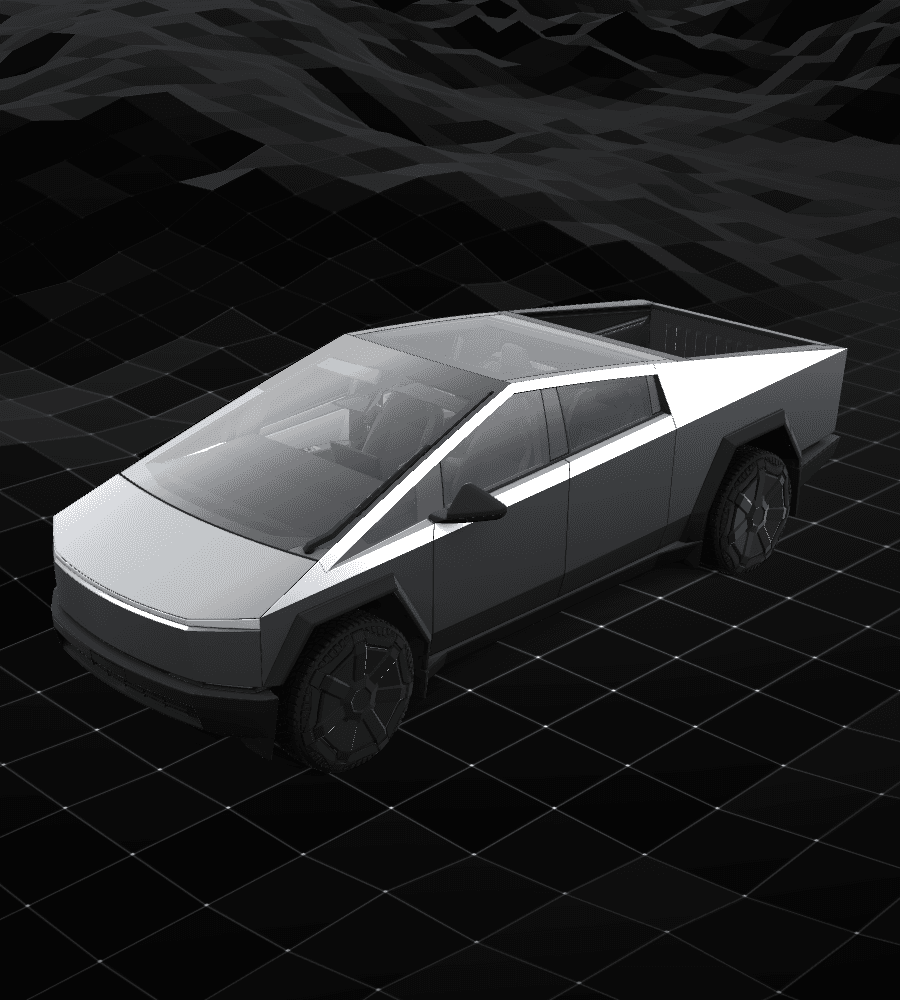
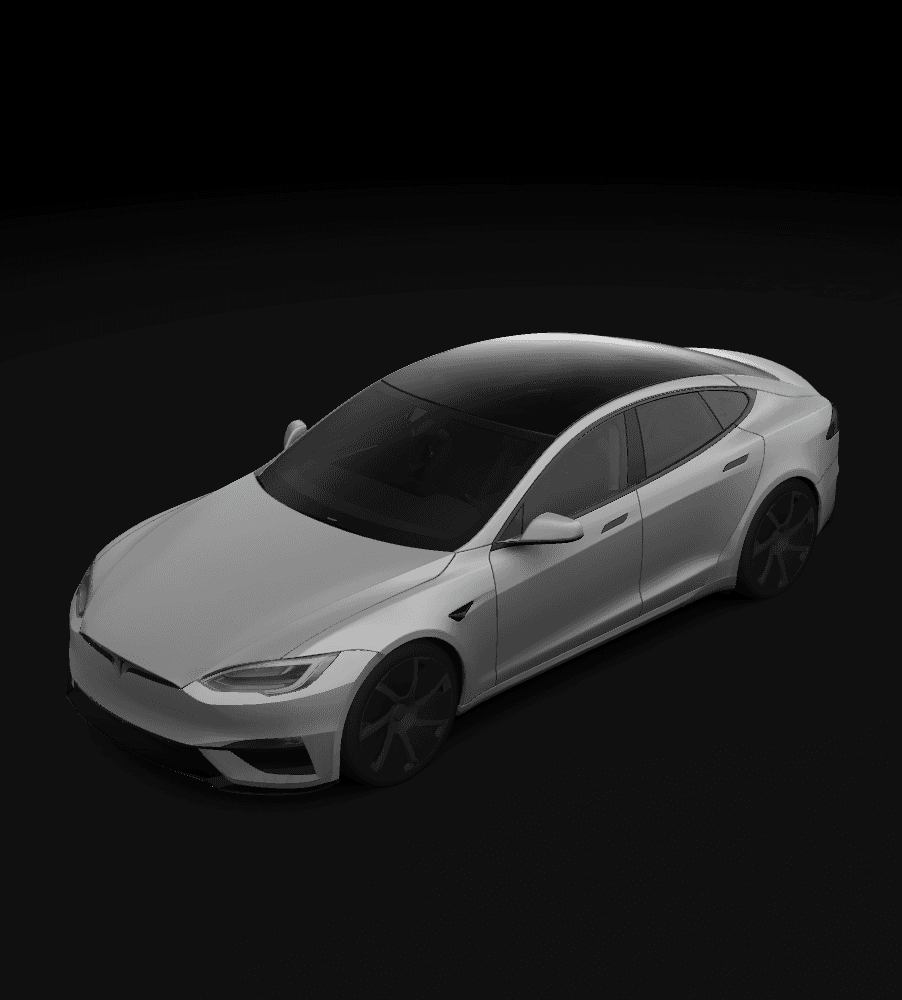
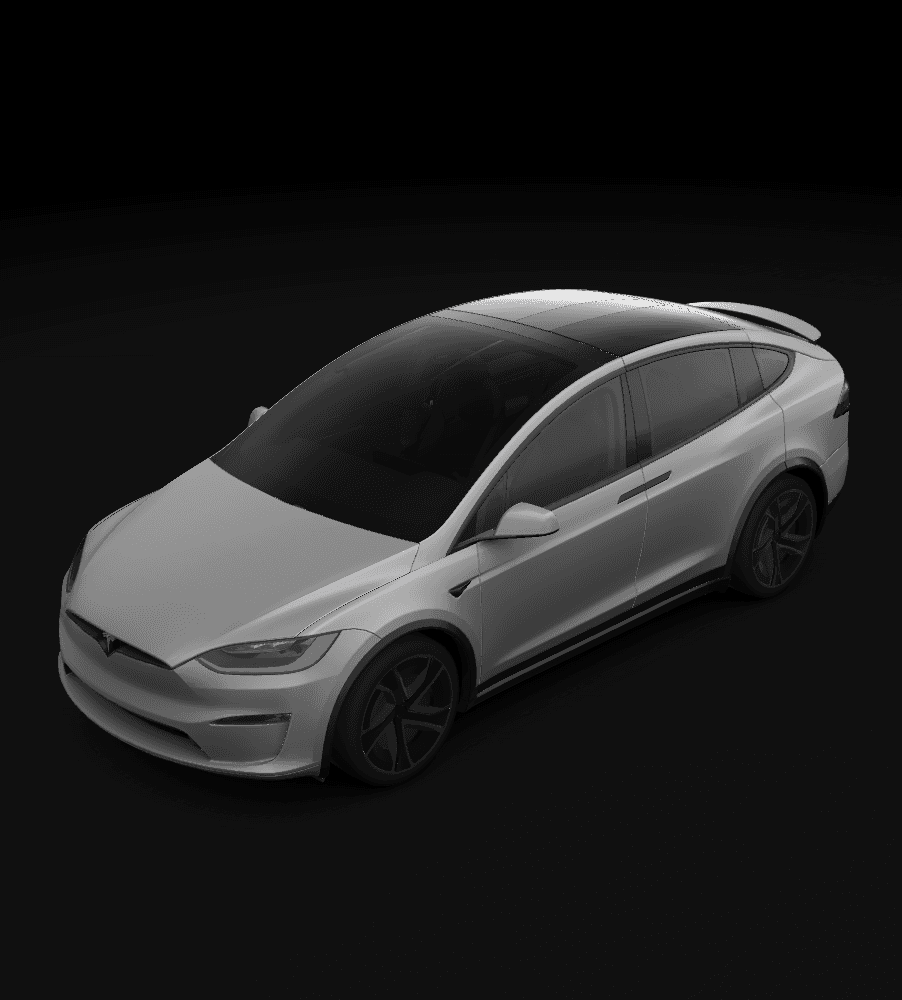
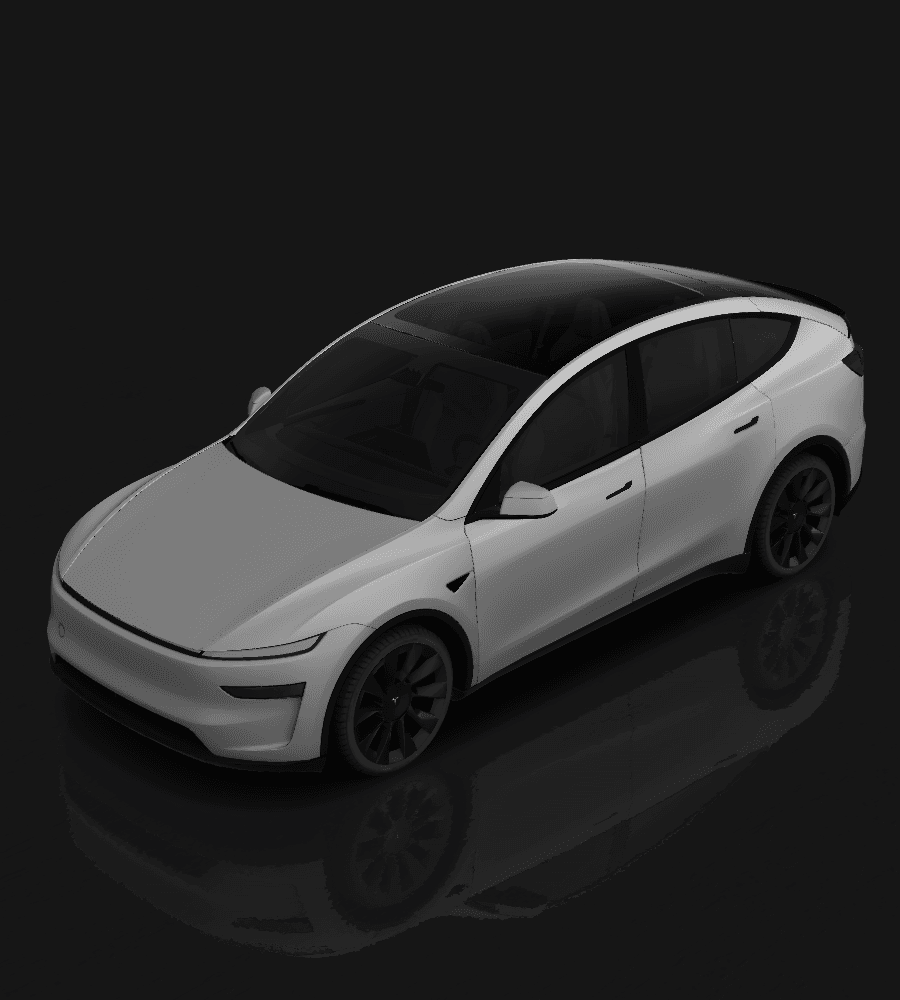
Every model uses its own template layout, so a wrap has to match the car it is going on. Pick your vehicle to browse designs sized correctly for it.

What the file actually looks like

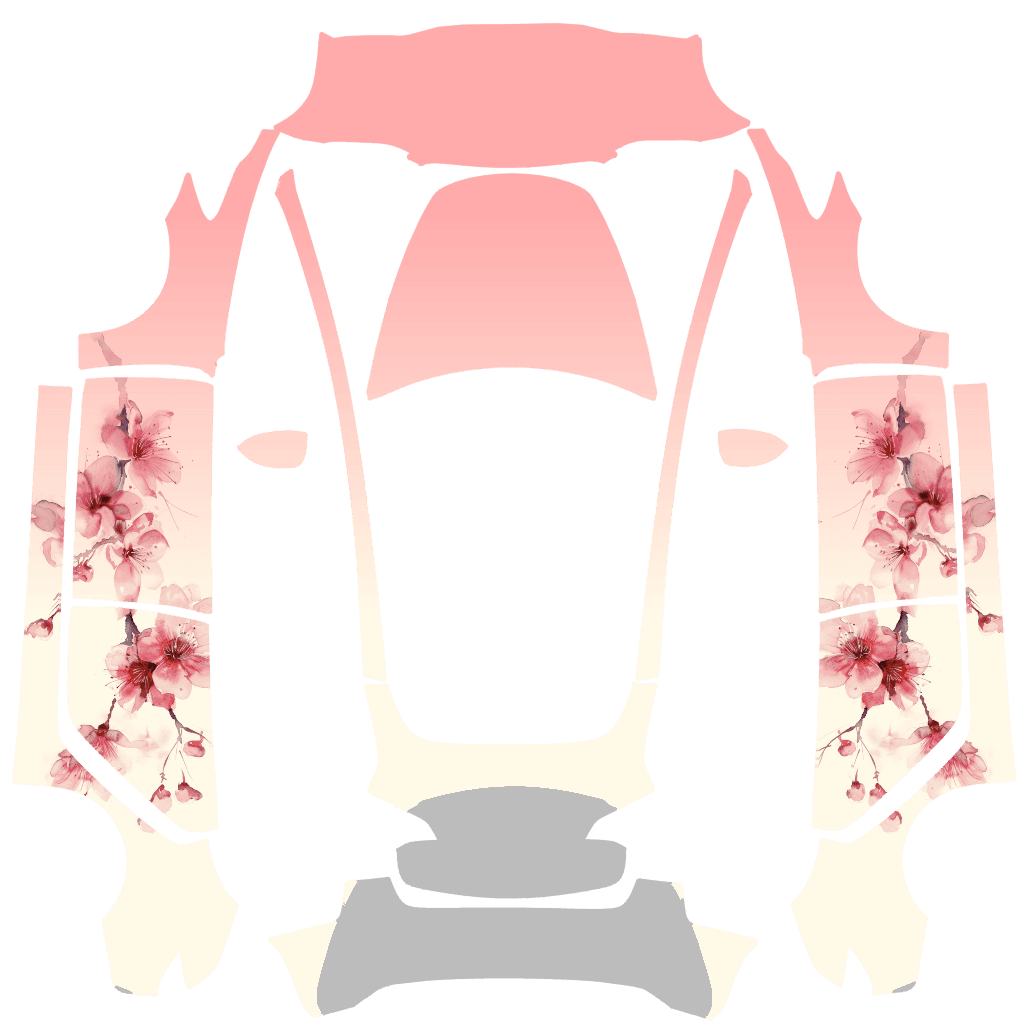
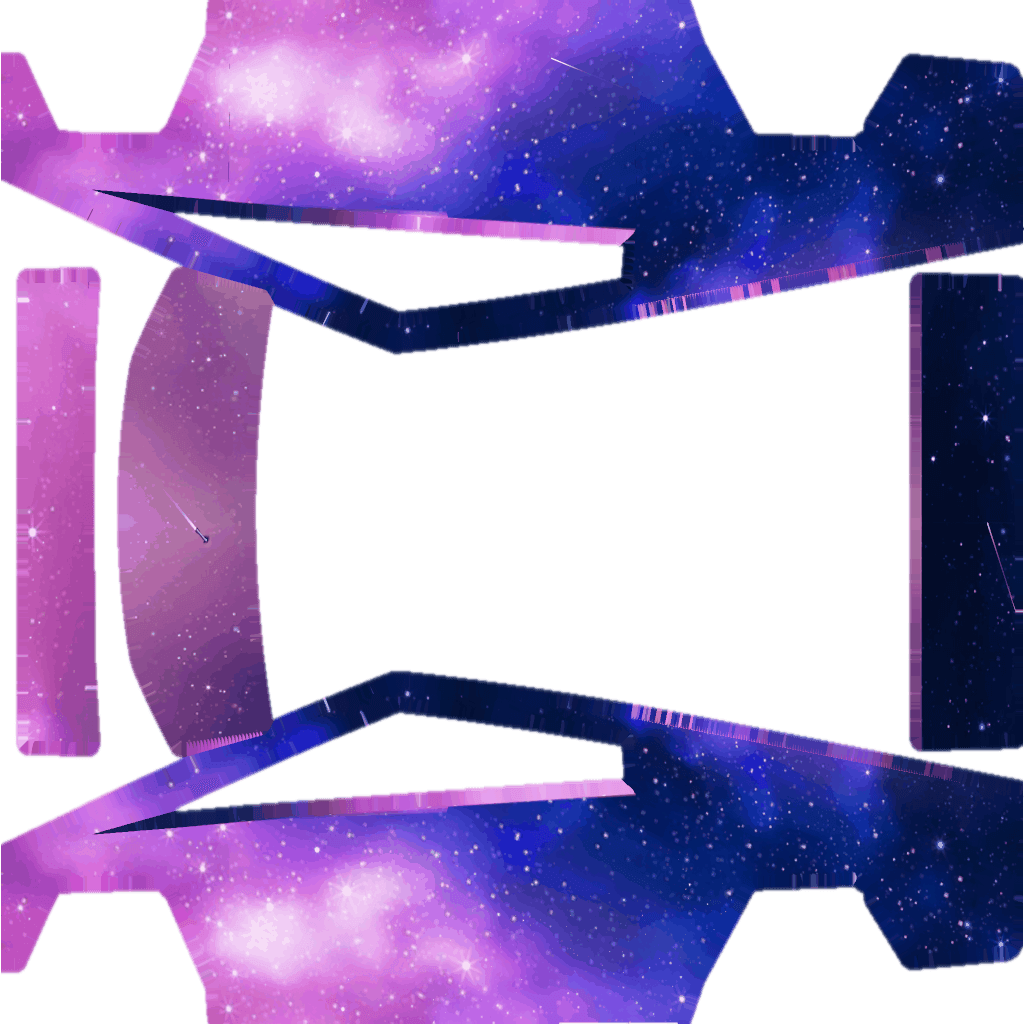
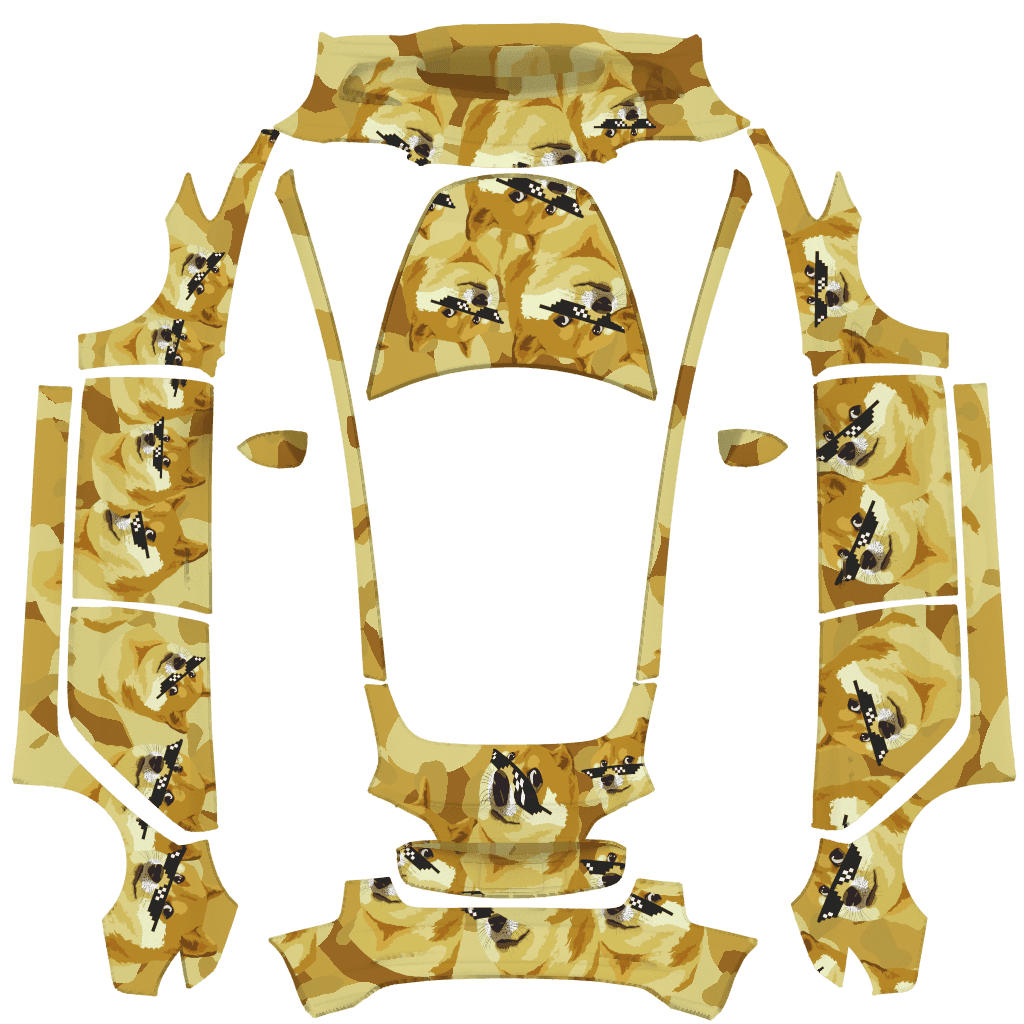
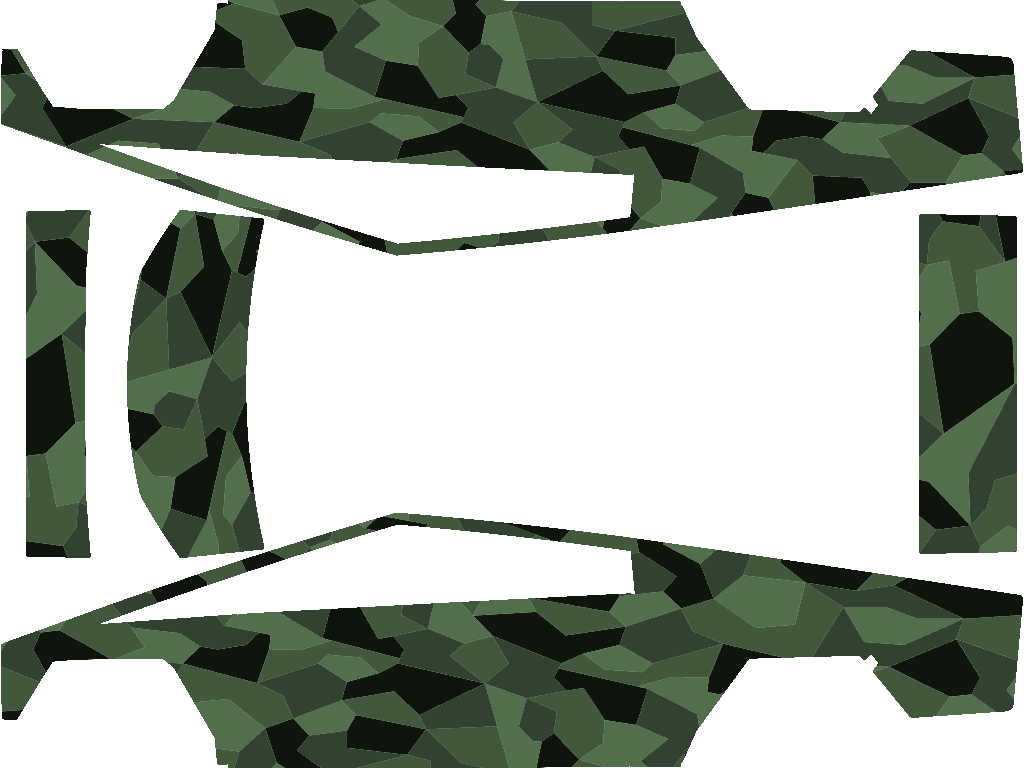
A wrap is a flat square texture that the car folds onto its bodywork. The panels look scattered when laid out flat — that is normal, and it is why a design has to be built against the right template.

Sakura Tesla Model 3 Paint Shop wrap texture, shown flat

Sakura

Model 3

Cosmic Burst Tesla Cybertruck Paint Shop wrap texture, shown flat

Cosmic Burst

Cybertruck

Doge Tesla Model 3 Paint Shop wrap texture, shown flat

Doge

Model 3

Camo Green Tesla Cybertruck Paint Shop wrap texture, shown flat

Camo Green

Cybertruck

Get a wrap that just works

Every design here is exported to the right template, under the 1 MB limit, with a filename Paint Shop accepts. Download one free, or describe an idea and let the AI designer draw it for your exact model.

Common questions

Why is my custom wrap not showing up in Paint Shop?

+

In almost every case it is one of four things: the PNG is larger than 1 MB, the filename contains a character other than letters, numbers, spaces, underscores or dashes, the USB drive is formatted as NTFS, or the Wraps folder is not at the top level of the drive. Check the file size first — it is by far the most common cause.

Where is Paint Shop on the Tesla screen?

+

Toybox → Paint Shop → Wraps. Toybox is reached from the app launcher on the main touchscreen. The car must be in Park.

Can I add a wrap without a USB drive?

+

Yes. The Tesla mobile app can upload wraps directly to the car from version 4.59.0 onward. You can hold up to 10 wraps from the app and a further 10 from a USB drive at the same time.

Does NTFS work for Tesla wraps?

+

No. Tesla Paint Shop does not read NTFS drives. Format the drive as exFAT (recommended), FAT32, MS-DOS FAT, ext3 or ext4.

Does a Paint Shop wrap change the real paint on my car?

+

No. Paint Shop changes how your Tesla appears on the car’s own touchscreen and in the mobile app. It is a digital wrap, not vinyl, and nothing is applied to the physical vehicle.

Which Teslas support custom wraps?

+

Model 3, Model Y (including Model Y L), Model S, Model X and Cybertruck all support Paint Shop wraps, provided the car is on recent software. Each model uses its own template layout, so download the wrap that matches your vehicle.